


Gmocker: Location Changer
4.51.25K Reviews
App Specs
- Version
- 2.4.4
- Updated On
- License
- Free
- Downloads
- 1,000,000+
- Developer
- VidaTech
- Categories
- Maps & Navigation
- Platform
- Android
Screenshots
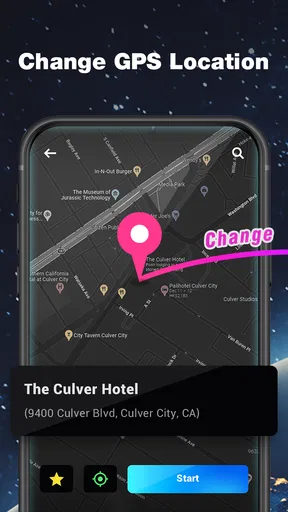
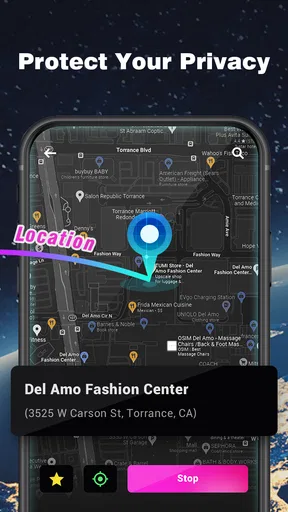
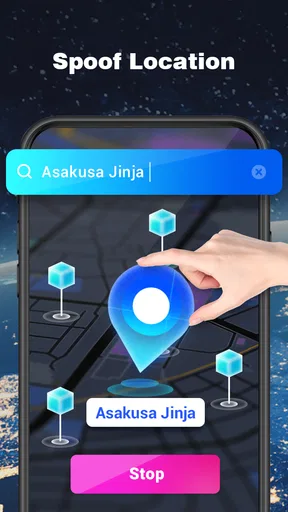
 Analysis by AppCompare
I find Gmocker most useful when I treat it as a location-testing tool, rather than a way to make every app believe I am somewhere else. A changed GPS position can help me explore how a service responds to a different place, but location-aware apps may combine GPS with network signals or their own checks. That distinction shapes what I would expect from Gmocker: Fake GPS Location: it can be handy for controlled experiments, yet it should not be mistaken for a guarantee that every service will accept a simulated location.
When the network changes the result
A map can show a chosen position while a location-based service still behaves differently than expected. Apps may rely on more than the device’s GPS reading, and their response can depend on connectivity and their own rules. I would therefore test one service at a time and check what it actually displays, instead of assuming that changing the pin has changed every location signal the phone can provide.
This matters especially when testing an app that loads nearby places, local search results, or region-specific screens. If a result does not update, I would first distinguish a location issue from a connection or refresh issue: confirm that the phone has a usable connection, return to the app being tested, and give it a chance to request location again. A mock point is only useful if the target app receives and refreshes the information it needs.
Useful in everyday mobile situations
For a developer or tester, a practical workflow is to save a handful of representative places and revisit the same screens after switching between them. That makes it easier to compare how an app handles a city center, a less familiar area, or a point near a service boundary. Favorites can reduce repetitive searching, while the route simulation described below can help examine behavior that depends on movement rather than a single stationary point.
A realistic casual example is checking how a location-based app presents a different area before planning a trip there. I would use a saved location to preview the app’s response, then return to my real position before relying on directions or meeting someone. This is a low-stakes way to explore the interface, not a substitute for checking current travel conditions or confirming that a place is actually open.
Gmocker is less suitable when you need dependable turn-by-turn navigation, accurate emergency location, or a service that explicitly requires your real position. In those situations, a standard maps app and the phone’s normal location settings are the better choice. If a platform blocks spoofed positions, repeatedly changing settings is unlikely to make that platform a reliable testing environment.
Setup and First Impressions
Getting started with Gmocker is a breeze. After downloading the app from your preferred app store, the installation process is straightforward. Once you open the app, you’ll be greeted by a clean and intuitive interface. The design is minimalistic, which is something I really appreciate in utility apps like this. It doesn’t overwhelm you with unnecessary features, just the essentials to get the job done.
Worth Reading Before You Choose

EA SPORTS FC Mobile 26 Is a Bigger Football Game, but It Takes Time

Flipboard Shows What News Apps Must Do Beyond the Feed

Switching to Android Auto Means Rethinking Your Driving Routine

Google Calendar Makes a Crowded Week Easier to Manage

Ludo King Makes the Most of the Minutes Between Plans

Baby Panda World Brings Quick Play to Modern Phones, but Its Game Library Feels Busy
To start faking your location, you simply need to enable the developer options on your phone and allow mock locations. Don’t worry; the app guides you through this process with clear instructions, so even if you’re not particularly tech-savvy, you’ll be able to navigate it without a hitch.
Features That Stand Out
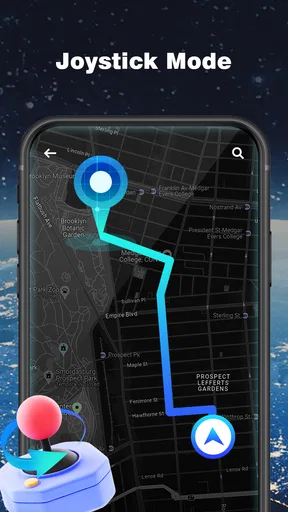
One of the standout features of Gmocker is its ability to simulate movement. You can set a start and endpoint, and the app will create a route that mimics real-life movement. This is particularly useful for testing location-based apps or games that require movement.
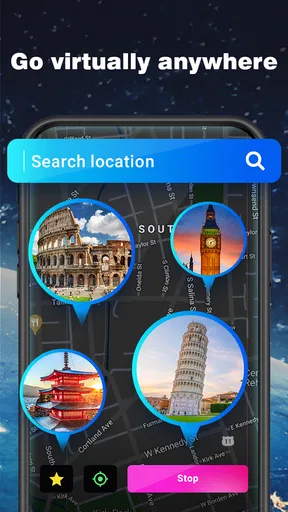
The app also offers a search function that allows you to find specific locations by entering coordinates or searching by name. This is super handy if you’re trying to access content from a specific region or test an app's functionality in various locations around the world without actually being there.
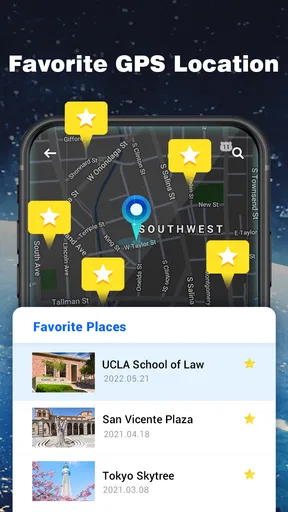
Another feature worth mentioning is the favorites list. You can save your most-used locations for quick access, which saves a lot of time if you frequently switch between the same places.
Making a test more repeatable
For location testing, I would keep the scenario simple: choose a place, observe the target app, then change one variable before trying again. For example, compare a stationary point with a simulated route, rather than changing the place and movement pattern together. That small discipline makes it easier to tell whether a different result came from the location, the movement, or the target app’s own behavior.
Coordinates are useful when a named search result is too broad or when you need to return to a precise test point. I would record the intended coordinates outside the test session and label saved favorites clearly, especially if several locations are close together. This avoids confusing two nearby points and makes repeated checks less error-prone.
Performance and Usability
In terms of performance, Gmocker runs smoothly without any noticeable lag. I tested it on both Android and iOS, and the experience was consistent across both platforms. The app doesn’t consume a lot of battery, which is always a plus since GPS apps can sometimes be quite the drain.
Usability-wise, the app is quite user-friendly. The buttons are large enough to easily tap, and the menus are logically arranged. If you ever get stuck, there’s a helpful FAQ section within the app that addresses most common questions.
What to do when a location does not take
If a target app continues showing the old place, I would avoid immediately repeating the same tap and hoping for a different result. First check that the mock-location setup is still enabled, then reselect the intended point and reopen or refresh the target app. If the target service rejects simulated locations or uses other signals, Gmocker may not be able to change its response; that is a limitation of the whole setup, not necessarily a fault in the map search.
For a movement test, a route that appears successful in the location tool may still look implausible to another app if the simulated path does not fit what that app expects. I would use short, straightforward routes when checking a basic feature and avoid treating the route as proof of how a real journey will behave. Real travel includes changing signals and conditions that a simulated path cannot represent in full.
Who Could Benefit from Gmocker?
Now, you might be wondering, "Is this app for me?" If you’re someone who works in app development or testing, Gmocker is a fantastic tool to have in your arsenal. It allows you to test how your app behaves under different geographical conditions without having to travel.
For the casual user, Gmocker offers a way to have some fun with social media check-ins or access content that might otherwise be restricted in your current location. Just remember to use it responsibly and be aware of any legal implications in your country regarding location spoofing.
Choosing it over ordinary map apps
Gmocker and a conventional navigation app solve different problems. A regular maps app is built to help you understand where you are and get somewhere using your real location. Gmocker is for deliberately substituting a location during a test or experiment. It is not the option I would choose to navigate an unfamiliar journey, and a normal map is more useful when live directions and real-world accuracy matter.
Compared with manually changing a location inside an individual service, a mock-location tool can be more convenient for testing multiple places in a consistent way. The trade-off is setup: enabling developer options and mock locations adds steps, and compatibility or service rules can still get in the way. If you only need to check one app’s built-in region setting, its own controls may be simpler and less disruptive.
Data-conscious habits and boundaries
Because changing a location can affect more than the screen currently open, I would keep a quick note of which apps I tested and restore my normal setup when finished. This is especially useful if I use location for practical tasks later in the day. The point is not to make a complicated checklist; it is to avoid forgetting that a test location is still selected when moving on to something that depends on the real one.
I would also be selective about when to run a route simulation. A stationary point is enough to check many location-based screens, while movement is relevant only when the app’s response depends on travel. Using the simpler test first keeps the results easier to interpret and avoids unnecessary activity. For anything involving safety, delivery, a meet-up, or navigation, I would switch back to accurate location rather than rely on a spoofed position.
Gmocker is a free app from VidaTech in the Maps & Navigation category. It has a 4.6 average from around 46,000 ratings, and has been installed over a million times. The app is rated for everyone; version 2.4.1 runs on Android 5.0 and newer, and optional in-app purchases range from $2.49 to $39.99 per item. Those purchases are worth considering only if the app’s available options meet a need you have; I would first establish whether the basic location-changing workflow suits my device and target app.
A few words of caution
While Gmocker is a powerful tool, it’s essential to use it ethically. Some apps and services have strict policies against location spoofing, and using such tools could lead to account suspensions or bans. Always ensure you’re aware of the terms of service of the apps you’re using it with.
Moreover, be cautious about sharing your fake location in critical situations, like during emergencies, where accurate location data is crucial.
In conclusion, Gmocker: Fake GPS Location is a robust and user-friendly app that does what it promises. It’s packed with features that make it versatile for both professional and casual use. Whether you need it for work or a bit of fun, it’s a solid choice among location spoofing apps. Just remember to use it wisely!
My connectivity verdict
I’d recommend Gmocker to someone who wants to test location-dependent behavior, compare a few places, or explore a location-based interface with a clear understanding of the limits. Its search, saved places, and route simulation make those experiments more practical than repeatedly traveling or entering the same details from scratch. The main friction is the setup and the fact that a target app may not accept the simulated position.
For a dependable trip, a real map app is the more sensible companion; for a controlled test, Gmocker can be a useful one. I would keep experiments deliberate, verify the result inside the app I am testing, and restore my normal location before relying on location-sensitive services. That balance is what makes this tool worthwhile without expecting it to replace real GPS or a stable connection.
Pros
- User-friendly interface for easy navigation.
- Accurate spoofing of GPS location.
- Supports multiple location modes.
- Customizable settings for flexibility.
- No ads in the premium version.
Cons
- May drain battery faster than expected.
- Limited features in the free version.
- Potential for app crashes on older devices.
- Requires developer options enabled.
- Might conflict with location-based apps.
FAQs for Gmocker: Location Changer
What is Gmocker: Fake GPS Location and how does it work?
Gmocker: Fake GPS Location is an app that allows users to simulate their GPS location on their Android or iOS device. It works by overriding the real GPS coordinates with a set of user-defined coordinates, making the device appear as if it is in a different location. This can be useful for testing location-based apps or privacy purposes.
Is Gmocker safe to use on my device?
Yes, Gmocker is generally safe to use; however, users should be cautious and ensure they download the app from a reputable source. Misuse of location spoofing apps can lead to violations of terms of service for other apps. Always use location spoofing responsibly and be aware of any legal implications.
Will using Gmocker affect other apps on my device?
Using Gmocker will affect any app that relies on your device's GPS location by providing them with the spoofed location instead of the actual one. This can be useful for testing purposes but might lead to unexpected behavior in certain apps that rely heavily on accurate location data, such as navigation or ride-sharing applications.
Can I use Gmocker for gaming purposes?
While Gmocker can technically be used to alter your location in games that use GPS, it's important to note that many games, especially those with location-based features, have strict policies against location spoofing. Using Gmocker in such games may lead to account bans or restrictions. Always review the game’s terms of service before using such tools.
Does Gmocker require any special permissions to operate?
Yes, Gmocker requires certain permissions to function correctly. It needs access to your device's location settings to spoof the GPS data. Additionally, you may need to enable 'Developer Options' on your Android device to allow mock locations. On iOS, the process might involve additional steps such as jailbreaking. Always follow the app’s instructions carefully.


